GoHighLevel workflow templates: the 8 every business should run
GoHighLevel workflow templates are ready-made automations in HighLevel’s template library: go to Automation, then Workflows, click Create Workflow and choose Select from Template (checked on help.gohighlevel.com). They’re a starting point, not a finished system. Every service business should run eight: new-lead reply, missed call text back, reminders, no-show recovery, reviews, nurture, reactivation and pipeline moves.
Key takeaways
- HighLevel’s template library loads a workflow you then edit. Nothing in it knows your offer, your hours or your pipeline.
- Build the three that protect money first: new-lead reply, missed call text back, and appointment reminders.
- In our team’s data from 186,400 leads, people answered in under a minute booked at 41 percent; after 4 to 24 hours, 9 percent.
- Every workflow needs a clear trigger, a stop condition and a test with your own contact before it goes live.
- Name and number your workflows. Most broken accounts we audit have dozens of unnamed copies nobody can trace.
Where are the workflow templates in GoHighLevel?
The templates live in the workflow builder. Open Automation, switch to the Workflows tab, click Create Workflow and pick Select from Template. Filter by category or search, preview a template with the eye icon, then click Continue to load it into the editor (checked on help.gohighlevel.com).
Once it’s loaded, it’s an ordinary workflow. Change the trigger filters, rewrite every message, set your sender and publish it. HighLevel doesn’t yet let you save your own workflows into the template library, so to reuse a workflow you’ve built, clone it inside the account or copy it to another sub-account.
Templates vs snapshots
A template is one workflow. A snapshot is a whole account copied from someone else: pipelines, calendars, custom fields and dozens of workflows at once. The GoHighLevel Experts doesn’t use snapshots on client builds, because two businesses in the same industry still sell differently. The full trade-off is in GoHighLevel snapshots.
The 8 workflows every service business should run
These are the workflows that cover a lead from first contact to repeat customer. Build them in this order: the first three protect leads and appointments you’re already paying for.
| Workflow | Trigger | What it does | Timing |
|---|---|---|---|
| 1. New-lead reply | Form submitted, or a lead from an ad integration | Text and email the lead, alert the team, queue a call | Within seconds |
| 2. Missed call text back | Call status: missed or no answer | Text the caller and start the conversation | Within a minute |
| 3. Confirmation and reminders | Appointment booked | Confirm, remind, pre-sell the call | On booking, then before the appointment |
| 4. No-show recovery | Appointment status: no-show | Text, call task, offer to rebook | Same day, then 1 to 3 days |
| 5. Review request | Job done or appointment showed | Ask for a review while the experience is fresh | Hours to a day after |
| 6. Long-term nurture | Lead didn't book | Educate until they're ready | Weekly to monthly |
| 7. Database reactivation | Tag or list of old leads | Bring old leads back into the pipeline | One campaign, a few touches |
| 8. Pipeline stage automation | Reply, booking, payment or stage change | Move the deal and start the next step | Instant |
1. New-lead reply (speed to lead)
Trigger: a form submission, or a lead arriving from Facebook or Google lead ads. Steps: a short personal text, an email with the details they asked for, an internal alert to whoever calls, and the lead dropped into a call queue. Timing: seconds, not minutes.
Speed is the whole point of this one. In our team’s data from 186,400 leads, people answered in under a minute booked at 41 percent, against 24 percent at 5 to 30 minutes and 9 percent after 4 to 24 hours. The numbers and the build are in speed to lead.
Common mistake: the workflow texts the lead but nobody calls. A text buys you a minute; the call books the appointment. Pair it with a power dialer queue and a set number of attempts: 5 or 7 for warm leads such as med spas and roofing, 10 to 15 for colder ones such as insurance or mortgages.
2. Missed call text back
Trigger: the call status trigger, filtered to missed or unanswered calls. Steps: a text from the same number that starts a conversation (“Sorry we missed you, what can we help with?”) rather than an apology, then a task for someone to call back. Timing: within a minute.
Common mistake: it fires for every call, including existing customers and staff, or it never fires because calls forward to a cell phone that picks up voicemail. The setup and fixes are in missed call text back in GoHighLevel.
3. Appointment confirmation and reminders
Trigger: appointment booked on the calendar. Steps: an instant confirmation by text and email, then reminders before the appointment, typically the day before and an hour or two before. Timing: on booking, then counted back from the appointment time.
Most accounts stop at a plain confirmation and one reminder. Builds by The GoHighLevel Experts send three short pre-frame videos between booking and the call, so leads show up more often and arrive ready to buy. More on that in GoHighLevel automation.
Common mistake: reminders keyed off the booking date instead of the appointment date, so a lead booked two weeks out gets “see you tomorrow” the next day.
4. No-show recovery
Trigger: appointment status changed to no-show (or cancelled). Steps: a friendly text with a rebooking link, a call task for the team, and a short sequence if they still don’t rebook. Timing: the same day, then over the next one to three days.
At Ultra Cryo, a Florida med spa, rebooking automation for cancellations and no-shows was part of the rebuild that lifted the conversion rate 19 percent. See the Ultra Cryo case study.
Common mistake: nobody marks the appointment as a no-show, so the trigger never fires. Make updating the status part of the team’s end-of-day routine, or log it from the call outcome.
5. Review request
Trigger: the job is marked complete, the appointment status is “showed”, or the deal moves to won. Steps: a short text and email asking for a Google review with a direct link, and one reminder if there’s no click. Timing: a few hours to a day after the service, while it’s fresh.
Common mistake: asking before the customer has had the result, or asking unhappy customers the same way as happy ones. Send it after the good moment, and route complaints to a person.
6. Long-term nurture
Trigger: the lead didn’t book after the first sequence (a tag, or a pipeline stage like “Nurture”). Steps: emails that teach instead of pester: customer stories, short videos, answers to the objections your team hears. Timing: weekly at first, then every few weeks.
Common mistake: nurture that only says “still interested?” Use email for anything that needs reading or links, and keep texts for quick next steps; the reasoning is in GoHighLevel SMS, and what goes in the emails is on GoHighLevel email marketing.
7. Database reactivation
Trigger: a list or tag of old leads and past customers who went quiet. Steps: a short, honest message with a reason to reply now (a new service, an opening in the calendar), then a call task for anyone who answers. Timing: one campaign of a few touches over a week or two, not an endless drip.
Common mistake: texting an old list without consent or without an opt-out, or blasting thousands of contacts on a new number. Check consent, send during the recipient’s daytime hours, and stay inside your daily texting limit.
8. Pipeline stage automation
Trigger: something that means the deal moved: a reply, a booking, a payment, a signed proposal. Steps: move the opportunity to the right stage, stop the workflows that no longer apply, and start the next one. Timing: instant.
This is what keeps the pipeline honest without anyone dragging cards around. Common mistake: stages that don’t match how the business sells, so automation moves deals into columns nobody looks at.
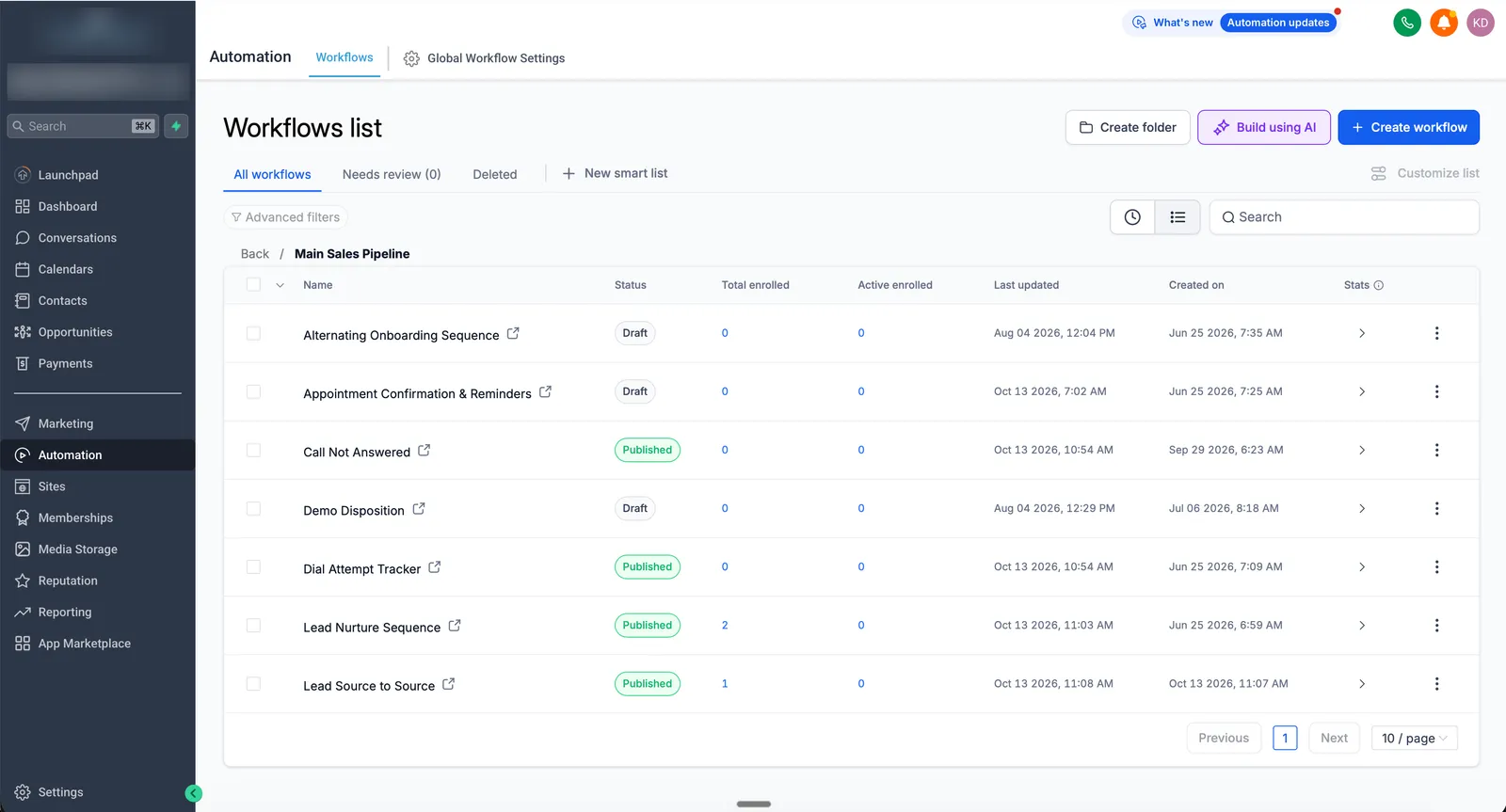
Here’s what that looks like on real client builds. On one sales pipeline, the core set runs as separate, clearly named workflows: confirmation and reminders, call not answered, the dial attempt tracker, nurture and lead source tracking.
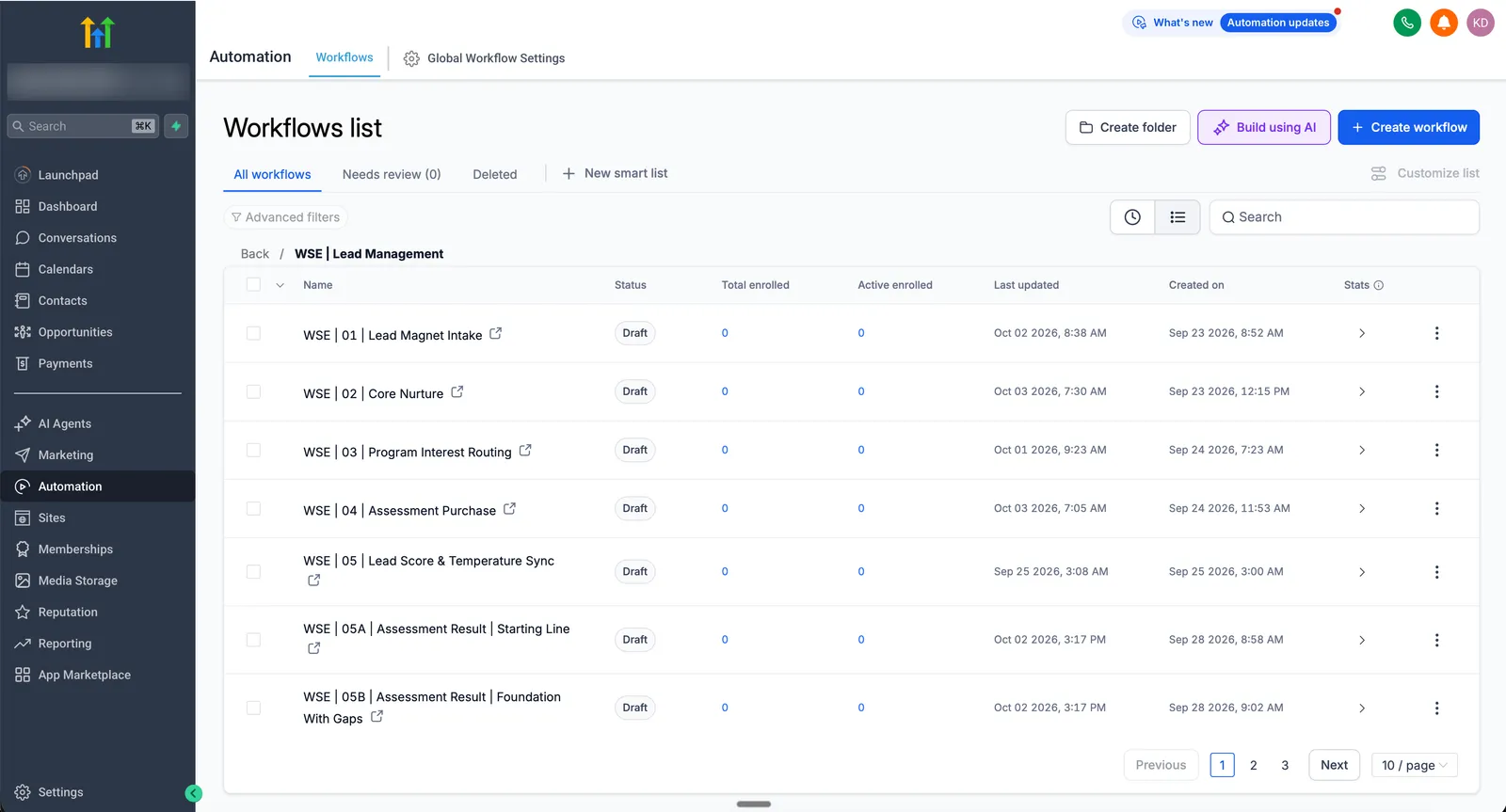
On an education business, the lead management workflows are numbered in the order a lead moves through them, from intake to nurture, routing, purchase and lead scoring.
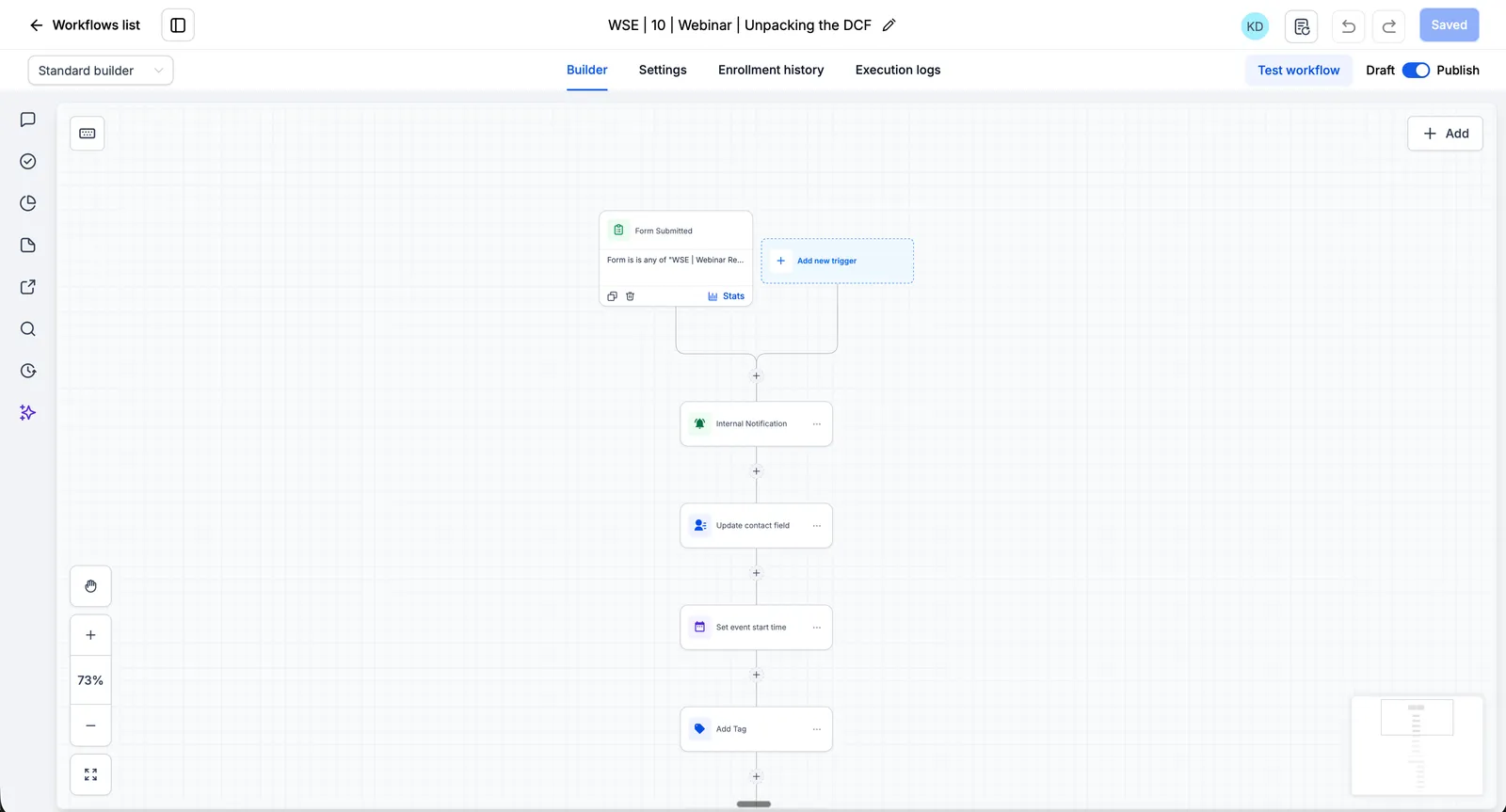
Inside a single workflow, the pattern stays short: one trigger, a few actions, and a tag that hands the contact to the next workflow.
How to set up a workflow from a template, step by step
- Pick the job first. Decide which of the eight you’re building and what should happen when it works.
- Load the template. Automation, Workflows, Create Workflow, Select from Template. Preview, then Continue.
- Set the trigger and its filters. Narrow it to the right form, calendar, pipeline or call type. An unfiltered trigger fires on everything.
- Rewrite every message. Use your business name, your voice and the contact’s first name. Template copy reads like a template.
- Set the stop conditions. Stop the sequence when the lead replies, books or buys, so nobody gets “are you still interested?” after paying.
- Name it. Number and name it so anyone can find it later: “01 New lead: reply and call queue”.
- Test with your own contact. Run yourself through it on your own phone and email before publishing.
- Publish, then watch the first week. Check the workflow’s history for errors and skipped steps.
Common mistakes with GoHighLevel workflow templates
- Leaving template text in place. Placeholder names, the wrong sender or generic offers go straight to real leads.
- No stop condition. The lead books and the nurture keeps going.
- Two workflows doing the same job. A snapshot workflow and a new one both text every lead, so each lead gets two messages.
- Texting before A2P is approved. Automated texts from an unregistered US number get filtered. Get A2P 10DLC registration done first.
- No naming system. When something breaks, you have to open every workflow to find it.
- Too complex. One workflow with 40 branches is harder to fix than four simple ones.
When should you get help?
Templates work well when you know exactly what each workflow should do and have time to test them. Get help when you’re running ads into the account and leads are already waiting, when old workflows are firing and nobody knows why, or when the whole journey needs building at once.
GoHighLevel automation builds all eight around your sales process, tested and documented. If the account already has workflows that misbehave, a GoHighLevel audit finds what’s firing and why. For a full account build, see GoHighLevel setup, and prices are on the pricing page.
Sources
- HighLevel help center, “Template Library for Workflows” (modified August 13, 2025): https://help.gohighlevel.com/support/solutions/articles/155000005613-template-library-for-workflows
- Our team’s speed-to-lead data (186,400 leads): speed to lead
- Ultra Cryo results: Ultra Cryo case study
FAQ
Does GoHighLevel have workflow templates?
Yes. Under Automation, then Workflows, click Create Workflow and choose Select from Template. The template library has ready-made workflows you can filter by category, such as lead nurture and onboarding, preview, and then edit like any other workflow.
Which GoHighLevel workflows should a new account set up first?
Start with the ones that touch new leads and booked appointments: instant reply to new leads, missed call text back, and appointment confirmations and reminders. Those three protect money you are already paying for. Nurture, reviews and reactivation come next.
Are workflow templates the same as snapshots?
No. A workflow template loads one workflow into your account for you to edit. A snapshot copies a whole account setup, including pipelines, calendars and dozens of workflows, built around someone else's business.
Can I save my own workflows as templates in GoHighLevel?
Not in the template library: HighLevel's help center says creating your own templates there is not available yet. You can clone a workflow inside an account, or copy workflows between sub-accounts.
Why does a workflow from a template not send anything?
Usually the trigger is not set for your account, the workflow is still in draft, or the messages still contain the template's placeholder text and sender. Check the trigger filters, publish the workflow and test it with your own contact before real leads hit it.